Showing posts with label samsung. Show all posts
Showing posts with label samsung. Show all posts
Samsung Galaxy S4 i9505 Review Yugatech
Yugatech has published the long anticipated review of the Samsung Galaxy S4 i9505. You will recall that Abe Olandres was invited to the Galaxy S4 launch in New York. To get the scoop on the Galaxy S4 follow this link.
 |
| Image is from Yugatechs review and used with the site owners permission. No republication of this image should be made without the permission of Yugatech. |
The real story is not the new smartphone. In truth, there are plenty of Galaxy S4 reviews. More important is what the review represents. A local blog, was invited to, and was given pre-release units for review. The significance of the worlds largest smartphone manufacturer taking notice of a Philippine based publication is not lost on me. Philippine blogging just moved up a notch, a big one at that.
Well done Samsung. Well done Mr. Olandres.

The Google Nexus 4 versus the Samsung Galaxy S III
In the Android world, the phone to beat is the Samsung Galaxy S III. The measure of how good the new Google Nexus 4 is, really depends on how well is compares with Samsungs flagship.
Display. The Nexus 4 has a 4.7-inch HD IPS Plus LCD screen with a WXGA (768 x 1280) resolution. The Galaxy S III uses a 4.8-inch Super AMOLED screen with a HD (720 x 1280) resolution on a PenTile matrix. The Nexus 4 screen is sharp and bright. The Super AMOLED screen has nice contrast and is a bit bigger. They both look fine to me.
Winner: Draw
 Power. Behind the display, the Google Nexus 4 uses a Qualcomm APQ 8064 Snapdragon S4 Pro chipset with a quad core Krait, which is what I like to call a "second generation" quad core processor. The Nexus 4 also has the new generation Adreno 320 GPU. Backing up the CPU and the GPU is 2 GB of RAM. The Samsung Galaxy S III uses a quad core processor based on the older ARM Cortex-A9 processor cores, has Mali-400 graphics and 1 GB of RAM.
 The Google Nexus 4 is undoubtably the more powerful of the two. Looking at benchmarks will show a rather different picture. The Nexus 4 either performs exceptionally well, or exceptionally bad. This really is more an issue of the Android Jelly Bean operating system not being optimized yet for the new Qualcomm APQ 8064 Snapdragon S4 Pro chipset. Still in the AnTuTu benchmark, the Nexus 4 is 25% faster than the Samsung Galaxy S III.
In the real world, both are fast enough but the Google Nexus 4 is running next years chipset, while the Samsung is running what used to be the top of the line.
Winner: Nexus 4
Endurance. Battery life. Well I will let the comparison speak for itself:
Talk time
- LG Optimus G - 15 hours 30 minutes
- Google Nexus 4 - 14 hours 17 minutes
- Galaxy S III (JB) - 10 hours 15 minutes
Web browsing
- Galaxy S III (JB) - 6 hours 27 minutes
- LG Optimus G - 5 hours 15 minutes
- Google Nexus 4 - 4 hours 34 minutes
Video playback
- Galaxy S III (JB) - 9 hours 27 minutes
- LG Optimus G - 7 hours 16 minutes
- Google Nexus 4 - 4 hours 55 minutes
Source: GSM Arena

The Google Nexus 4 has better talk time, but given these are smartphones, screen on time really matters more, and the Galaxy S III really winds that round. I included the LG Optimus G in the comparison. The Optimus G is the Nexus 4s sister phone, both made by LG and running similar hardware. The main difference is that The Optimus G runs on Ice Cream Sandwich. The Optimus G performance would seem to show that Android Jelly Bean optimized yet for the new Qualcomm APQ 8064 Snapdragon S4 Pro chipset, and the Nexus 4 battery life should improve with a operating system update. But even when a updated operating system arrives, the Samsung Galaxy S III will best the Nexus 4 in battery life.
As the phones get older, the Samsung Galaxy S IIIs battery can be easily replaced giving it a new lease on life. The Google Nexus 4 has a build in battery.
Winner: Samsung Galaxy S III
Camera. Okay, I wont waste your time here. The Samsung Galaxy S III has the best camera in the Android world, and the Google Nexus 4 has a decent 8 MP shooter. Only the Apple iPhone 5 really rivals the Galaxy S III camera among the locally available phones. You can compare shots using GSM Arenas photo compare tool.
Winner: Samsung Galaxy S III
Storage. Again, little to compare here. The Google Nexus 4 has 16 GB of internal storage. The Samsung Galaxy S III 16 GB of internal storage expandable via a MicroSD Card slot.
Winner: Samsung Galaxy S III
Software updates. The Samsung Galaxy S III is likely to be updated with the next versions of Android which will be released in 2013. The Google Nexus 4 will be supported well into 2014. That is what makes a Nexus phone and Nexus phone after all.
Winner: Nexus 4
Price. The lowest price I could find for the Samsung Galaxy S III, with an official warranty is Php27,700. The Google Nexus 4 is available for Php22,240. That is a 5K difference in price.
Winner: Nexus 4
Verdict. There are other areas to compare. I selected those which I find most important, so other users may have other considerations. The Google Nexus 4 gives you more power but less battery life. Over time new apps and games may make the Google Nexus 4 the more compelling choice. For now, the Samsung Galaxy S III will allow you to run your apps and games longer. The user replaceable battery is will make it easier to keep the the Samsung Galaxy S III running well longer. The Samsung Galaxy S III has a better camera.
On the other hand the Nexus 4 will get software updates faster, and is significantly cheaper.
So which is best depends on the user. If your on a budget. Pick up the Nexus 4, it is a very good value for money option. For the money, you will not likely regret your purchase. If you are a techie who wants to always have the latest version of the Android operating system, get the Nexus 4.
If budget is not an issue, the Samsung Galaxy S III will serve you better. More time in between recharges and it will give you nicer pictures to upload to Facebook. Once the 16 GB of internal storage feels cramp, you can alway pop in a 16, 32 or 64 GB Micro SDCard.
Ultimately, both are good choices for the asking price, with the Google Nexus 4 offering great value and the Samsung Galaxy S III offering enough more to justify it higher price tag.
Samsung Galaxy S4 gets the teardown treatment shows its neatly organized internals
The time has come for the Galaxy S4 to share the faith of many gadgets before it and have its internal exposed in a glorious teardown moment. This time around, Samsung’s flagship was taken apart byTechrepublic‘s Bill Detwiler.

Unsurprisingly, given to the new hardware found in it, the Galaxy S4 sports a redesigned interior, compared to the Galaxy S3. As it turns out though, thanks to the user-removable back cover, it’s quite easy to get to the main internal circuit board. The battery has been moved further down to make room for the main board.

The front panel of the Galaxy S4 is fused to the display (with a Synaptics S5000B touch controller). This means if something goes awry with the device and one of the two breaks, both will have to be replaced. This will require that you, or a technician, remove all of the internal components in the process.

Happily, that isn’t such an issue as Detwiler finds out. Overall, he’s impressed with the improvements and design refinements in the phone’s hardware department and praises Samsung for the good job they are doing with each new Galaxy flagship.
Source | Via
Samsung Galaxy S3 vs Samsung Galaxy Note 2 Which Should You Get
Samsung galaxy series is surely became the biggest winner of the mobile phone market recently. The most outstanding two representatives- Samsung Galaxy S3 and Samsung Galaxy Note II , arguably one the most popular – and one the most profitable. Before that, Samsung Galaxy S3 and iPhone 5 contradistinction is very hot, now people turn to a new contradistinction. Now that I write this comparative article niche targeting , it is time to start the Samsung Galaxy S3 vs Samsung Galaxy Note 2 specification and the user experience battle. Let’s get it on!

Price:
Samsung Galaxy S3 is now priced at around $600 on Amazon whereas we are expecting the Samsung Galaxy Note 2 price to be around $700!!
Android OS Version :
Galaxy Note 2 has the latest Android 4.1 Jelly Bean out of the box. Even the Samsung Flagship Galaxy S3 would be getting the official Android 4.1 Jelly Bean.
CPU / Processor and RAM :
Samsung Galaxy S3 sports a powerful Samsung made Exynos 4 Quad ( Exynos 4412 ) 32 nm chip which is a A9 Cortex Quad Core processor with each core clocked at 1.4Ghz and the same Exynos 4412 Quad is in Galaxy Note 2, only difference is that it is clocked at 1.6GHz.
Samsung Galaxy S3 has 1GB RAM whereas the Galaxy Note 2 features a 2GB RAM.
Battery :
Galaxy S3 which does certainly lasts long even with moderate to heavy usage.
Now the Galaxy Note 2 has a 3100 mAH powerful battery.It certainly would give huge battery life and it seems that can easily last a day or two.
But yeah comparitively, Note 2 battery wouldnt be much superior to that of the Galaxy S3 because the Note 2 is a bigger device meaning more bigger battery.
Screen Display :
Now these are some big displays in the market and undoubtedly almost the maximum the technology could offer at the moment.The Samsung Galaxy S3 flaunts a 4.8 inch Super AMOLED HD display with a pentile matrix having 306 ppi (pixels per inch).Its having a resolution of 1280 x 720 ( 720p). Now whereas the Galaxy Note 2 is flaunts a gigantic 5.5 inch Super AMOLED HD with the same resolution surprisingly having the Pentile matrix as well.
* These 2 are wonderful smart phones of the year, if one decided to buy any one, they won’t select one from this easily since both are awesome specs. - from Taylor
* I would say, it all depends, S3 is bit more expensive than galaxy note here. But Note gives more control over usage as its big in size. S3 is a proper phone while note is sort of alternate to tablet and laptops. - from Norris
* note 2 specs are little better than the s3 but there is not a major diff between them..if u like the bigger screen go with the note 2.if u like th lighter go with s3!! - from Partridge
Whether the two parts comparison above help you guys decided which of these smartphones you gonna to buy? We are really interested to know your feedback !
By the way, Samsung Galaxy users, if you deleted,formatted, lost, corrupted, erased files from Samsung Galaxy phone by mistake, just following the guide below to get your data back soon:
ReadMore detail...
Part I, Objective Data Comparison
The fight includes five equally important rounds: price, android os version, cpu/processor and ram, battery, screen display.Price:
Samsung Galaxy S3 is now priced at around $600 on Amazon whereas we are expecting the Samsung Galaxy Note 2 price to be around $700!!
Android OS Version :
Galaxy Note 2 has the latest Android 4.1 Jelly Bean out of the box. Even the Samsung Flagship Galaxy S3 would be getting the official Android 4.1 Jelly Bean.
CPU / Processor and RAM :
Samsung Galaxy S3 sports a powerful Samsung made Exynos 4 Quad ( Exynos 4412 ) 32 nm chip which is a A9 Cortex Quad Core processor with each core clocked at 1.4Ghz and the same Exynos 4412 Quad is in Galaxy Note 2, only difference is that it is clocked at 1.6GHz.
Samsung Galaxy S3 has 1GB RAM whereas the Galaxy Note 2 features a 2GB RAM.
Battery :
Galaxy S3 which does certainly lasts long even with moderate to heavy usage.
Now the Galaxy Note 2 has a 3100 mAH powerful battery.It certainly would give huge battery life and it seems that can easily last a day or two.
But yeah comparitively, Note 2 battery wouldnt be much superior to that of the Galaxy S3 because the Note 2 is a bigger device meaning more bigger battery.
Screen Display :
Now these are some big displays in the market and undoubtedly almost the maximum the technology could offer at the moment.The Samsung Galaxy S3 flaunts a 4.8 inch Super AMOLED HD display with a pentile matrix having 306 ppi (pixels per inch).Its having a resolution of 1280 x 720 ( 720p). Now whereas the Galaxy Note 2 is flaunts a gigantic 5.5 inch Super AMOLED HD with the same resolution surprisingly having the Pentile matrix as well.
Part II, The User Experience Contrast
Most of the time, user feedback is also very important, you can more truly to know the two mobile phone performance, include most things that not mentioned in the specification.* These 2 are wonderful smart phones of the year, if one decided to buy any one, they won’t select one from this easily since both are awesome specs. - from Taylor
* I would say, it all depends, S3 is bit more expensive than galaxy note here. But Note gives more control over usage as its big in size. S3 is a proper phone while note is sort of alternate to tablet and laptops. - from Norris
* note 2 specs are little better than the s3 but there is not a major diff between them..if u like the bigger screen go with the note 2.if u like th lighter go with s3!! - from Partridge
Whether the two parts comparison above help you guys decided which of these smartphones you gonna to buy? We are really interested to know your feedback !
By the way, Samsung Galaxy users, if you deleted,formatted, lost, corrupted, erased files from Samsung Galaxy phone by mistake, just following the guide below to get your data back soon:
http://www.any-data-recovery.com/topics/mobile-devices/recover-samsung-galaxy.html
Tips on how to enter recovery mode on Samsung Galaxy Note 2
If you are a Samsung Galaxy Note2 user,keep this Samsung Data Recovery tip,maybe oneday you might need it.
When you need to install official or custom ROMs in your Android devices, or you have a need to wipe the cache, dalvik cache or to have access for other options which help you to customize your Samsung Galaxy Note 2 device, then you should enter in the recovery mode, for make this thing is very easy, only to know the right combination of actual button.

Before teach you how to enter in the recovery mode, you mustassimilateyour consideration that, the recovery mode is an important menu for your device and there, it’s very dangerous if you don’t know what you should to do.
Very generally the recovery mode for Galaxy Note 2 smartphone is used for flash new custom ROM or for backup, there if is installed the CWM (ClockworkMod) installed, then you can easily to install the custom ROMs or to get the backup for your current Rom installed in your device. A complete backup, which is possible from the recovery mode in the Note 2,it is the Nandroid backup; with this tool you can get a full backup for all your data, like the ROM and your personal information, apps, files, documents, contacts. For this kind of backup, you’ll need more than 1 GB free space in your internal device memory. But for installing the CWM you’ll need the root access, and if you’ll root your device the warranty will be void.
These things above mentioned we can begin our tutorial.
How to enter recovery mode on Samsung Galaxy Note 2 smartphone:
* Turn off your Samsung Galaxy Note 2 device.
* After the device is turned off, press the following combination of buttons in the same time:
Volume up + power button + home button, and keep these buttons pressed until the recovery mode will be displayed.
* When you’re in the recovery mode, you can release the buttons.
This is all, now you successfully learnt how to access the recovery mode on Samsung Galaxy Note 2 device.
Another modality to enter in the recovery mode is only for the rooted Galaxy Note devices for some custom’s ROMs, for this method press the power button for a few seconds and then a pop up methods will be displayed. Now, in the menu select the reboot option, there you should see the reboot options: “Normal”, “Recovery”, and “Download “. From there choose the Recovery option and then your device will take a reboot in the recovery mode directly, without any other settings.
Remember to use our comment section for any troublesto understand our tutorial.
Another tip:
Deleted files from Samsung mobile phone by mistake is common to Samsung users, if it happen on you, and you need to recover deleted photos from Samsung galaxy, what should you do? Ha, the answers just in this blog! (Note: turn to "Tutorial: How to Recover Samsung Galaxy" Or "Simple Points To Help You Recover Deleted Pictures From Samsung Galaxy " )
ReadMore detail...
When you need to install official or custom ROMs in your Android devices, or you have a need to wipe the cache, dalvik cache or to have access for other options which help you to customize your Samsung Galaxy Note 2 device, then you should enter in the recovery mode, for make this thing is very easy, only to know the right combination of actual button.

Before teach you how to enter in the recovery mode, you mustassimilateyour consideration that, the recovery mode is an important menu for your device and there, it’s very dangerous if you don’t know what you should to do.
Very generally the recovery mode for Galaxy Note 2 smartphone is used for flash new custom ROM or for backup, there if is installed the CWM (ClockworkMod) installed, then you can easily to install the custom ROMs or to get the backup for your current Rom installed in your device. A complete backup, which is possible from the recovery mode in the Note 2,it is the Nandroid backup; with this tool you can get a full backup for all your data, like the ROM and your personal information, apps, files, documents, contacts. For this kind of backup, you’ll need more than 1 GB free space in your internal device memory. But for installing the CWM you’ll need the root access, and if you’ll root your device the warranty will be void.
These things above mentioned we can begin our tutorial.
How to enter recovery mode on Samsung Galaxy Note 2 smartphone:
* Turn off your Samsung Galaxy Note 2 device.
* After the device is turned off, press the following combination of buttons in the same time:
Volume up + power button + home button, and keep these buttons pressed until the recovery mode will be displayed.
* When you’re in the recovery mode, you can release the buttons.
This is all, now you successfully learnt how to access the recovery mode on Samsung Galaxy Note 2 device.
Another modality to enter in the recovery mode is only for the rooted Galaxy Note devices for some custom’s ROMs, for this method press the power button for a few seconds and then a pop up methods will be displayed. Now, in the menu select the reboot option, there you should see the reboot options: “Normal”, “Recovery”, and “Download “. From there choose the Recovery option and then your device will take a reboot in the recovery mode directly, without any other settings.
Remember to use our comment section for any troublesto understand our tutorial.
Another tip:
Deleted files from Samsung mobile phone by mistake is common to Samsung users, if it happen on you, and you need to recover deleted photos from Samsung galaxy, what should you do? Ha, the answers just in this blog! (Note: turn to "Tutorial: How to Recover Samsung Galaxy" Or "Simple Points To Help You Recover Deleted Pictures From Samsung Galaxy " )
Tutorial How to Recover Samsung Galaxy
The Samsung Galaxy S3 works at 4G LTE which is powered by Android 4.0. Really it is a computer device that definitely makes the life easier. Samsung is one of the pioneer providers of advanced digicam and mobile phones. It gives diverse selection of cameras which is designed with powerful features and stunning qualities. Samsung provides different type of series like DSLR and a lot upgraded technologies. Now a days everyone is choosing Samsung Galaxy model due to its stunning features. This Samsung model is properly designed and allows its users to capture excellent images. But users need to face critical situation whenever they loss their saved pictures.If such a thing happens ,if you have a way to recover samsung galaxy s3 ,Tab,Note,Nexus etc.

Dont panic after you lost the picture files inside your samsung galaxy due to these reasons:
* Accidental formatting of media
* Accidental deletion of picture(s)
* Misuse of memory cards
* Corruption in storage device or computers disc drive
* Utilization of memory drives in a number of computers
Photos, images, photos. Pictures are among the most loved things. It captures an extra of life for long periods then we merely take pictures using our Camera. In the event you lost those memories, dont worry, it will be easy to acquire better lost photos using photo recovery software.
This i will show How you can perform samsung galaxy data recovery
Step A. Download software from http://www.any-data-recovery.com/product/photo-recovery.htm and install on your pc.
Step B. Connect your card with the computer. Open the installed software.
Step C. Find the way youll want to recover photos, " Deleted Recovery" or " Format Recovery" .
Step D. Scan you card, then choose the photos youll need, click "Recover".
Yet another tip
Do not write any data for a samsung galaxy to shield from extreme heat plus order to avoid the results lose.
Learn more:
* how to restore samsung galaxy s3
* how to recover photos on samsung galaxy s
ReadMore detail...

Dont panic after you lost the picture files inside your samsung galaxy due to these reasons:
* Accidental formatting of media
* Accidental deletion of picture(s)
* Misuse of memory cards
* Corruption in storage device or computers disc drive
* Utilization of memory drives in a number of computers
Photos, images, photos. Pictures are among the most loved things. It captures an extra of life for long periods then we merely take pictures using our Camera. In the event you lost those memories, dont worry, it will be easy to acquire better lost photos using photo recovery software.
This i will show How you can perform samsung galaxy data recovery
Step A. Download software from http://www.any-data-recovery.com/product/photo-recovery.htm and install on your pc.
Step B. Connect your card with the computer. Open the installed software.
Step C. Find the way youll want to recover photos, " Deleted Recovery" or " Format Recovery" .
Step D. Scan you card, then choose the photos youll need, click "Recover".
Yet another tip
Do not write any data for a samsung galaxy to shield from extreme heat plus order to avoid the results lose.
* how to restore samsung galaxy s3
* how to recover photos on samsung galaxy s
Samsung Galaxy S4′s GT I9505 official firmwares are now available
Samsung has just started to push Galaxy S4′s (GT-I9505) firmwares to the KIES server as the device is soon going to be launched in various countries. Samsung always releases the firmware before the device itself and it’s the same case
 with the Galaxy S4, as well. The firmware is based on Android 4.2.2 Jelly Bean with Samsung’s Nature UX 2.0 running on top of it. Currently, Samsung has only released the firmware for Germany, we hope other countries to follow soon.
Firmware Details:
Android Version: 4.2.2 – Build JDQ39
PDA: I9505XXUAMDM
CSC: I9505OXAAMDM
Android Version: 4.2.2 – Build JDQ39
PDA: I9505XXUAMDM
CSC: I9505OXAAMDM
All the Galaxy S4 (GT-I9505) firmwares are available for download from our Firmware Section. Now as the official firmwares have been released, it’s going to rain custom ROMs and custom kernels for the Galaxy S4 (GT-I9505).
CyanogenMod 10 1 Nightly available for Samsung Galaxy S4 for T Mobile
Lead CyanogenMod developer and creator Steve Kondik has made an important announcement that will make Galaxy S4 owners leap with joy. The custom ROM project is currently available in an experimental, nightly build for the T-Mobile version of the Samsung flagship smartphone.

Kondik also unveiled that CM10.1 is coming for the international GT-i9500 model in the near future. Its development has been postponed for a little while since the team doesn’t have an actual unit to fiddle with.
Moreover, the custom ROM is going to support Android’s hover events meaning that they’ll be open to developers to think of cool new software features in the line of Samsung’s Air View. Steve Kondik notes that there are “a few rough edges”, but as they get ironed out “in short order”, CyanogenMod 10.1 for the Galaxy S4 will be more than good enough for a daily driver.
If you’re eager to treat you Galaxy S4 with an experimental build of the CyanogenMod 10.1 ROM, follow the source links below (the first is for the T-Mobile variant; the second for Canadian versions). Others should follow in the next few days and weeks. Happy flashing!
Source (1), Source (2) | Via, Via (2)
Samsung Galaxy S III Will Be Launched for Five US Major Carriers
Samsung has introduced that they're going to be launching the Samsung Galaxy S III on US market for 5 main providers. The phones will go on sale starting this June and could have a beginning value of $199, despite the very fact that the exact launch date and value might be introduced one with the support of one with the aid of the individual providers later.
The telephone in query has the dual-core 1.5GHz Qualcomm Snapdragon S4 MSM8960 processor with 2GB of RAM, as an alternative of the quad-core Exynos four Quad and 1GB RAM on the international edition. The cause of this switch is to incorporate support for the US LTE bands.
Samsung point outs that the telephone can have custom-made services and products relying upon the carrier however there will now not be any information concerning whether this will simplest be restricted to community plans or will prolong to device and hardware customizations. It does seem though this time, unlike with the Galaxy S II that had various hardware configurations across the carriers, the Galaxy S III will stay the same.
As mentioned earlier than, no precise launch dates or pricing has been talked about however you can look in advance to person announcements from your favourite providers detailing these merchandises shortly.
Samsung Galaxy Appeal I827 Hard Reset
Slide-Out Keyboard
Sometimes, you like a keyboard. Sometimes, you like a touchscreen. With the slide-out QWERTY keyboard on the Samsung Galaxy Appeal™, you can do both simultaneously.
This dual input capability means it’s easier than ever for you to keep in touch with friends and family, whether you’re texting, sharing media or just keeping up with your social networks. And when you throw in Samsung’s Social Hub and AT&T Social Net, the Appeal gets even more appealing.
Samsung Social Hub and Facebook
The Appeal takes sharing to a whole new level. Capture those must-share moments with the built-in camera or camcorder, then post them to your favorite social network. And Samsung’s Social Hub brings together your Facebook®, Twitter® and LinkedIn® accounts in one central location to make managing your social life easier than ever.
Samsung Galaxy Appeal™ Android Smartphone Hard Reset
Samsung Galaxy Appeal I827 hard reset
Samsung i827 Appeal Android System Recovery Password Reset
 Note: If you entered this menu by mistake, use the Volume Up/Down keys to select reboot system now, then press the Power key. Your phone will then continue to boot up.
To enter the Android System Recovery mode, follow these steps:
1. With the phone turned off, slide the keypad open.
2. Press the Power key and T key at the same time.
3. When you feel a vibration from the phone, release the Power key but continue to hold the T key.
4. When the recovery screen is displayed, release the T key.
5. The following options are available:
Samsung Appeal Safe Mode
You can boot your Samsung Galaxy Appeal SGH-I827 (ATT) phone into Safe Mode if you wish to troubleshoot whether or not added applications are causing problems with the device. Safe mode will only load basic system software.
1. Make sure your phone is turned off.
2. Press and hold the power key to boot up your device.
3. After the start-up animation begins to display, rapidly tap the Menu key until the Lock screen displays.
When the Lock screen is displayed, Safe mode is displayed in the lower left corner of the screen.
Reset you Samsung Galaxy Appeal I827 Your device freezes or has fatal errors
If your device freezes or hangs, you may need to close programs or reset the device to regain functionality. If your device is frozen and unresponsive, press and hold the Power key for 10-15 seconds. The device will reboot automatically.
If this does not solve the problem, perform a factory data reset. In Idle mode, open the application list and select
Settings ► Privacy ► Factory data reset ► Reset phone ► Erase everything.
Select Settings ► Privacy ► Factory data reset: Reset your settings to the factory default values and delete all your data.
Press Application button, then Settings ► Reset settings: Reset your settings to the factory default values
Review Samsung Galaxy Appeal SGH-I827
ReadMore detail...
Sometimes, you like a keyboard. Sometimes, you like a touchscreen. With the slide-out QWERTY keyboard on the Samsung Galaxy Appeal™, you can do both simultaneously.
This dual input capability means it’s easier than ever for you to keep in touch with friends and family, whether you’re texting, sharing media or just keeping up with your social networks. And when you throw in Samsung’s Social Hub and AT&T Social Net, the Appeal gets even more appealing.
Samsung Social Hub and Facebook
The Appeal takes sharing to a whole new level. Capture those must-share moments with the built-in camera or camcorder, then post them to your favorite social network. And Samsung’s Social Hub brings together your Facebook®, Twitter® and LinkedIn® accounts in one central location to make managing your social life easier than ever.
Samsung Galaxy Appeal™ Android Smartphone Hard Reset
Samsung Galaxy Appeal I827 hard reset
Samsung i827 Appeal Android System Recovery Password Reset
To enter the Android System Recovery mode, follow these steps:
1. With the phone turned off, slide the keypad open.
2. Press the Power key and T key at the same time.
3. When you feel a vibration from the phone, release the Power key but continue to hold the T key.
4. When the recovery screen is displayed, release the T key.
5. The following options are available:
- Reboot system now: this option turns on your phone.
- Apply update from sdcard: this option allows you to apply updates from your memory card to your phone.
- Select this ► wipe data/factory reset: deletes all data from the phone except pictures and videos.
- Wipe cache partition: allows you to delete all cache data such as log files.
- Test redbend fota: used for development purposes only.
Samsung Appeal Safe Mode
You can boot your Samsung Galaxy Appeal SGH-I827 (ATT) phone into Safe Mode if you wish to troubleshoot whether or not added applications are causing problems with the device. Safe mode will only load basic system software.
1. Make sure your phone is turned off.
2. Press and hold the power key to boot up your device.
3. After the start-up animation begins to display, rapidly tap the Menu key until the Lock screen displays.
When the Lock screen is displayed, Safe mode is displayed in the lower left corner of the screen.
Reset you Samsung Galaxy Appeal I827 Your device freezes or has fatal errors
If your device freezes or hangs, you may need to close programs or reset the device to regain functionality. If your device is frozen and unresponsive, press and hold the Power key for 10-15 seconds. The device will reboot automatically.
If this does not solve the problem, perform a factory data reset. In Idle mode, open the application list and select
Settings ► Privacy ► Factory data reset ► Reset phone ► Erase everything.
Select Settings ► Privacy ► Factory data reset: Reset your settings to the factory default values and delete all your data.
Press Application button, then Settings ► Reset settings: Reset your settings to the factory default values
Review Samsung Galaxy Appeal SGH-I827
Take Screen Shot in Samsung Galaxy Ace Without Root
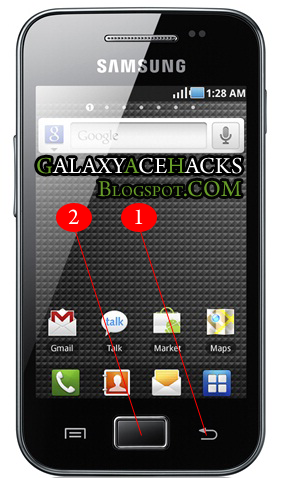
Capturing screen in Samsung Galaxy ace is so simple and achive this without using any third party application. To work this trick OS version Should be Android 2.3 GingerBread. If your OS version is 2.2 then upgrade it free.. if you have allready 2.3 then try it.
1. First press and hold the backbutton in your phone.
(marked in picure as 1)
2. Now Click your Home button and relese....
(marked in picture as 2)
If you here a capture sound and see a capture transition..Done...!!!
Now Goto your SD Card using any File browser ...will get a folder named "ScreenCapture" containing captured picture.
below is the picture captured using my Galaxy Ace GT-S5830 Android 2.3.4 GingerBread
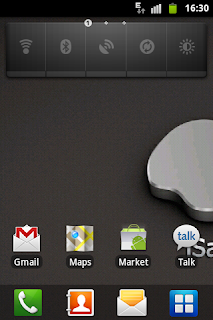
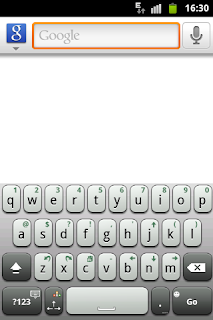
I am tested it with Galaxy ace v 2.3.4 and worked for me.
If this helped you please do a comment....if know any other way please share by comment.
Samsung M920 Transform Android Hard Reset
Android Éclair 2.1 OS
Android Éclair 2.1 OS You’ll have access to over 80,000 Android apps. And the latest 2.1 operating system runs each one with ease.
Sprint ID Service Packs
Sprint ID is a new kind of innovation on Android. Sprint ID exclusively by Sprint, helps you get the most out of your phone by allowing you to choose a total experience for your device. Whether you’re a fitness fanatic or you rely on your phone to boost your productivity, there’s no more getting lost in an app store to find a particular app of interest or going to your PC – with Sprint ID you get a “total experience” like ringtones, wallpapers, apps and widgets downloaded all at once, in one click based on the Sprint ID pack you choose – it personalizes your phone automatically. And the catalog of experiences will grow and expand – it’s a marketplace full of experiences just for you
 How to Hard Reset Samsung M920?
Press and hold the volume down button and the voice dialer, then while those two are pressed down press the power button. as soon as the device boots up let go of the power button while still holding the other two. this will get you where you need to. use the voice command to select data reset.
For Factory Reset, simply select Menu ► Settings ► Privacy ► Personal data ► Factory data reset
Or, use this method to hard reset your Samsung M920 Transform Android phone:
Enter *2767*3855#.
Warning! All your data including contacts, messages etc. will be lost! Copy all your necessary data/Contacts/Messages etc. to SIM or make backup to your PC before full reset! Take out SIM card before full reset.
ReadMore detail...
Android Éclair 2.1 OS You’ll have access to over 80,000 Android apps. And the latest 2.1 operating system runs each one with ease.
Sprint ID Service Packs
Sprint ID is a new kind of innovation on Android. Sprint ID exclusively by Sprint, helps you get the most out of your phone by allowing you to choose a total experience for your device. Whether you’re a fitness fanatic or you rely on your phone to boost your productivity, there’s no more getting lost in an app store to find a particular app of interest or going to your PC – with Sprint ID you get a “total experience” like ringtones, wallpapers, apps and widgets downloaded all at once, in one click based on the Sprint ID pack you choose – it personalizes your phone automatically. And the catalog of experiences will grow and expand – it’s a marketplace full of experiences just for you
How to Hard Reset Samsung M920?Press and hold the volume down button and the voice dialer, then while those two are pressed down press the power button. as soon as the device boots up let go of the power button while still holding the other two. this will get you where you need to. use the voice command to select data reset.
For Factory Reset, simply select Menu ► Settings ► Privacy ► Personal data ► Factory data reset
Or, use this method to hard reset your Samsung M920 Transform Android phone:
Enter *2767*3855#.
Warning! All your data including contacts, messages etc. will be lost! Copy all your necessary data/Contacts/Messages etc. to SIM or make backup to your PC before full reset! Take out SIM card before full reset.
Subscribe to:
Posts (Atom)