Showing posts with label without. Show all posts
Showing posts with label without. Show all posts
Take Screen Shot in Samsung Galaxy Ace Without Root
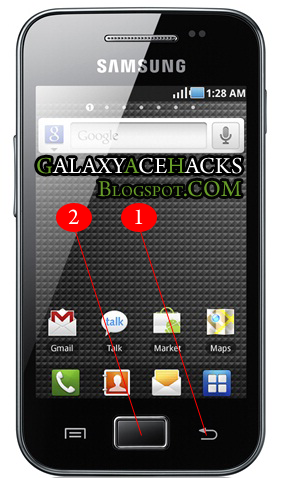
Capturing screen in Samsung Galaxy ace is so simple and achive this without using any third party application. To work this trick OS version Should be Android 2.3 GingerBread. If your OS version is 2.2 then upgrade it free.. if you have allready 2.3 then try it.
1. First press and hold the backbutton in your phone.
(marked in picure as 1)
2. Now Click your Home button and relese....
(marked in picture as 2)
If you here a capture sound and see a capture transition..Done...!!!
Now Goto your SD Card using any File browser ...will get a folder named "ScreenCapture" containing captured picture.
below is the picture captured using my Galaxy Ace GT-S5830 Android 2.3.4 GingerBread

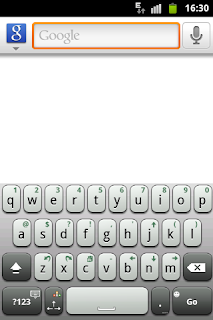
I am tested it with Galaxy ace v 2.3.4 and worked for me.
If this helped you please do a comment....if know any other way please share by comment.

Take a Full Backup of Android without Rooting
Take a Full Backup of Android without Rooting:
Just like you take a backup of your files on PC, you need to have a backup of your files and apps on your Android phones as well. But when you want to take full backup using tools, you might have to provide full root access which means you need to root the phone. But for a normal user, rooting the phone might not be a feasible option as it might void the warranty. For this we had previously covered tools which allows you to take a backup of your phone without rooting.
Simple ADB Backup is yet another freeware tool which allows users to take a full backup of your Android phone without having to root the phone.

The app is pretty easy to use, download the app and extract it. Run the SAB_Windows.exe file on Windows and select the option from the list for backup.
There are quite a few restrictions on using this app;
Just like you take a backup of your files on PC, you need to have a backup of your files and apps on your Android phones as well. But when you want to take full backup using tools, you might have to provide full root access which means you need to root the phone. But for a normal user, rooting the phone might not be a feasible option as it might void the warranty. For this we had previously covered tools which allows you to take a backup of your phone without rooting.
Simple ADB Backup is yet another freeware tool which allows users to take a full backup of your Android phone without having to root the phone.
The app is pretty easy to use, download the app and extract it. Run the SAB_Windows.exe file on Windows and select the option from the list for backup.
There are quite a few restrictions on using this app;
- It is not compatible with all phones
- Supported only Android 4.0+
- Backups can be restored only to same phone
- USB debugging needs to be enabled on the device.
Create Local Cloud Nandroid Backups Without Recovery Using Orange Backup
Create Local & Cloud Nandroid Backups Without Recovery Using Orange Backup:

ReadMore detail...
A timely NANDROID backup of your Android device can save you from losing your precious mobile data and personalized system settings. Android users have long relied on custom recoveries (such as ClockworkMod Recovery and TWRP) to create NANDROID backups of their devices. However, there are various apps and solutions available these days that can help you create NANDROID backups without having to reboot into recovery. Developed by XDA member snoopy33, Orange Backup is arguably the finest addition to the list of such tools to date, as it supports 1-tap NANDROID backup, zipping and uploading to cloud storage of your choice. Needless to say, Orange Backup is meant to work with rooted devices only. The tool also supports scheduled backup & uploading to cloud, full, incremental or split backups, backing up user-selected partitions only, option to upload data over Wi-Fi and/or while charging only, integrated app & task manager, and lots more.
As of now, Orange Backup supports automatic uploading of backups to Google Drive, Dropbox, and any medium that supports FTP transfers. In terms of supported custom Android recoveries, Orange Backup works with both ClockworkMod Recovery and TWRP. The app is meant for rooted devices only and if you haven’t rooted yours yet, don’t forget to check out our Android rooting guide.


The app’s interface has been neatly designed in accordance with the latest Android UI guidelines. The main screen lists all your backup instances, the sidebar allows quick access to the native app uninstaller, task killer, event logger, device info and system settings tools, and the menu overflow button reveals options to upload last backup, reboot device into recovery and clean unwanted incremental backup instances with a tap.
At launch, you are prompted to verify your device manufacturer and model, which is automatically detected by the app. Next, you’ll have to choose Dropbox, Google Drive or FTP for your cloud storage.


To start creating complete backups of your current Android ROM with all your personalized system and app settings, just hit the magic wand button on the app’s main interface, and leave the rest to Orange Backup. The app will back up the data, compress it, generate MD5 checksums and upload it to the cloud in the background, keeping you informed of the overall progress through status bar notifications.


If you wish to tinker with the contents to be included in the backup, go to the app’s settings screen where you’ll find plenty of options to play around with, including:
Automatic Backup: Option to schedule automatic backups at your desired interval and time. You can also specify the number of old backups that you wish to retain; older backups will be deleted only after the ongoing backup has been successfully completed.


Backup Name: As the name suggests, you can set default parameters to rename your backups by time or with user-defined tags.
Backup Configuration: Depending on your recovery, you have the option to choose among full, incremental, split or TWRP-specific backup type. For local backups, you can specify the custom directory on your device’s SD card. Special provision for TWRP compression is also included within the app. You can opt to backup all partitions, or just pick the ones you want to backup and leave out the rest.


A few other handy options provided here include specifying a custom SD-EXT partition path to backup (required only if you have SD-EXT configured), backing up the Yaffs2 partition as TAR files, preventing your screen from going to sleep during backups, and setting the device to vibrate upon backup completion.
Cloud Configuration: Provides options to enable/disable the cloud backup feature, upload backups over Wi-Fi and/or while charging only, and delete all but the latest backup from cloud each time a new backup is uploaded there.
ZIP Configuration: Allows uploading backup content in the form of ZIP files only. You also have the option to split ZIP files in case of relatively large backup files, which is useful if your cloud service account has maximum file size restrictions. Last but not the least, you may secure your compressed archives using a password.


We’re not done with the app’s features yet; the Uninstaller and Task Killer tools that come bundled with Orange Backup support working on both system and third-party apps. Orange Backup was successfully tested on HTC Desire Z where it impressed with its 1-tap NANDROID backup, zipping and cloud uploading capabilities by completing the entire process in no more than 5 minutes, all from within the OS (Android 4.0.4-based AOKP custom ROM) itself.
The most surprising part of the entire deal is all Orange Backup features are available for free. The app is compatible with any rooted device running Android 2.3 Gingerbread and higher, and can be downloaded from the Play Store link provided below.
Download Orange Backup For Android
[via XDA-Developers]
As of now, Orange Backup supports automatic uploading of backups to Google Drive, Dropbox, and any medium that supports FTP transfers. In terms of supported custom Android recoveries, Orange Backup works with both ClockworkMod Recovery and TWRP. The app is meant for rooted devices only and if you haven’t rooted yours yet, don’t forget to check out our Android rooting guide.
The app’s interface has been neatly designed in accordance with the latest Android UI guidelines. The main screen lists all your backup instances, the sidebar allows quick access to the native app uninstaller, task killer, event logger, device info and system settings tools, and the menu overflow button reveals options to upload last backup, reboot device into recovery and clean unwanted incremental backup instances with a tap.
At launch, you are prompted to verify your device manufacturer and model, which is automatically detected by the app. Next, you’ll have to choose Dropbox, Google Drive or FTP for your cloud storage.
To start creating complete backups of your current Android ROM with all your personalized system and app settings, just hit the magic wand button on the app’s main interface, and leave the rest to Orange Backup. The app will back up the data, compress it, generate MD5 checksums and upload it to the cloud in the background, keeping you informed of the overall progress through status bar notifications.
If you wish to tinker with the contents to be included in the backup, go to the app’s settings screen where you’ll find plenty of options to play around with, including:
Automatic Backup: Option to schedule automatic backups at your desired interval and time. You can also specify the number of old backups that you wish to retain; older backups will be deleted only after the ongoing backup has been successfully completed.
Backup Name: As the name suggests, you can set default parameters to rename your backups by time or with user-defined tags.
Backup Configuration: Depending on your recovery, you have the option to choose among full, incremental, split or TWRP-specific backup type. For local backups, you can specify the custom directory on your device’s SD card. Special provision for TWRP compression is also included within the app. You can opt to backup all partitions, or just pick the ones you want to backup and leave out the rest.
A few other handy options provided here include specifying a custom SD-EXT partition path to backup (required only if you have SD-EXT configured), backing up the Yaffs2 partition as TAR files, preventing your screen from going to sleep during backups, and setting the device to vibrate upon backup completion.
Cloud Configuration: Provides options to enable/disable the cloud backup feature, upload backups over Wi-Fi and/or while charging only, and delete all but the latest backup from cloud each time a new backup is uploaded there.
ZIP Configuration: Allows uploading backup content in the form of ZIP files only. You also have the option to split ZIP files in case of relatively large backup files, which is useful if your cloud service account has maximum file size restrictions. Last but not the least, you may secure your compressed archives using a password.
We’re not done with the app’s features yet; the Uninstaller and Task Killer tools that come bundled with Orange Backup support working on both system and third-party apps. Orange Backup was successfully tested on HTC Desire Z where it impressed with its 1-tap NANDROID backup, zipping and cloud uploading capabilities by completing the entire process in no more than 5 minutes, all from within the OS (Android 4.0.4-based AOKP custom ROM) itself.
The most surprising part of the entire deal is all Orange Backup features are available for free. The app is compatible with any rooted device running Android 2.3 Gingerbread and higher, and can be downloaded from the Play Store link provided below.
Download Orange Backup For Android
[via XDA-Developers]
Copy Webpage Content Without Formatting With PureText
PureText is a free application to copy and paste the content from any web page as simple text into some other application without formatting. This kind of copy and paste is like copying and pasting only the pure text without all the formatting applied to it, and that’s why the name given to the application as PureText.
Many a times when we copy content/text from a webpage and paste it into a new application we find it very difficult to remove the formats applied to the fonts and make the text unique like a simple normal text, in such cases PureText is very helpful and you just need a single key stroke to use it.
 Now, you are ready to use this application. By default the key combination set for paste in windows is Ctrl+V and here for PureText the combination is set as Windows key+V but you can change the hot-key combination for this. To change the key combination just right-click on the Pt icon, click on Options and you will get the following window.

Here, you can select any key, you have the choice to choose any alphabet A-Z, F1-F9, numbers 0-9, etc. And you can make the combination with: Alt, Control, Shift, Windows key. You can also make this software perform certain actions like to paste the converted text into the currently selected window and play a sound, when the Hot-key is pressed. You can make this application automatically start on the system start-up, so that every time you switch on the system you do not need to start the application manually.
Download PureText.
Via Ilovefreesoftware
Many a times when we copy content/text from a webpage and paste it into a new application we find it very difficult to remove the formats applied to the fonts and make the text unique like a simple normal text, in such cases PureText is very helpful and you just need a single key stroke to use it.
How You Can Use PureText?
Just download the application which will be downloaded as a ZIP file which you can store anywhere in your system. Just extract the file and click on the application to start using. As soon as you start the application you will notice a ‘Pt’ icon in your taskbar.

Here, you can select any key, you have the choice to choose any alphabet A-Z, F1-F9, numbers 0-9, etc. And you can make the combination with: Alt, Control, Shift, Windows key. You can also make this software perform certain actions like to paste the converted text into the currently selected window and play a sound, when the Hot-key is pressed. You can make this application automatically start on the system start-up, so that every time you switch on the system you do not need to start the application manually.
What all formatting PureText Can Remove?
The formats which PureText removes include font style (bold, italics, etc.), font face, font color, margins, paragraph styles (left/right/centre aligned), character spacing, tables, bullets, pictures, charts, any kind of embedded objects, etc. The actual content will not be modified ever, also the paragraphs will not be erased.Conclusion:
PureText is a very good and small application with a very good purpose of pasting the content from any webpage to another application by removing all the formatting. This very easy to use application can be used anytime and works very fast.Download PureText.
Via Ilovefreesoftware
Subscribe to:
Posts (Atom)