Showing posts with label files. Show all posts
Showing posts with label files. Show all posts
How to Identify Files that don’t have an Extension

When we download files from torrents or other sites, sometimes the downloaded file may not have any extension. So windows cant identify the file type. To open the file we should know the extension.
By Googling you will get many tools to identify the extension and file type. I am sharing a best tool that worked well for me. It is very small in size and very easy to use.
Download TrIDNet and XML Definition here
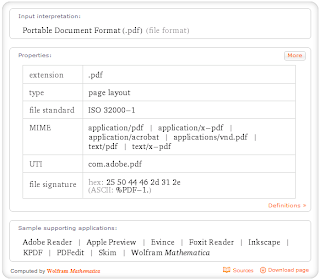
When you get the file extension if you want to know which software is required to preview that file.Just go to WolframAlpha Website and enter the extension with dot.for example if you want to know pdf enter .pdf ,now you will get something like below image.

Easily Search For Files Or Folders On The Network With LanHunt
Easily Search For Files Or Folders On The Network With LanHunt:

Local networks allow easy sharing of files between multiple computers but if there is a large number of files and folders shared on a network, managing all of them can be a bit difficult. If you are looking for a particular file or folder and don’t remember the computer it was on or its path on that computer, things can get a little frustrating. The Windows search option works great to look for files onyour local storage, but not quite so for network files. Today, we have an open source application for you called LanHunt that allows you to search for shared files and folders on the network. You can quickly search for network content and narrow down the results using file-type filters. In addition, the Open Location feature allows you to directly access the parent folder of a required file.
LanHunt’s user friendly interface allows you to search for files without having to go into any difficult configurations. When you run the app for the first time, the interface will appear to be a bit bland and not up-to-par with today’s design standards – something that the developer can and should improve. There is a search field in the center and right below it is the drop-down menu to change the file type, along with the Hunt button. You can choose to search all files, videos, audio files, documents or just executable file.

The application keeps a local database of files and folders on the network. Before you can start searching for files and folders using the application, you will need to the database. Just click the Update DB button at the top, hit Start and wait for the update to complete.

A very useful feature is that you can specify the IP range for searching the files. In order to avoid getting results from unwanted computers attached to the network, enter the start and end of the IP range that you want to include in the search.

When one or more matches for your search are found, they will be listed with link provided to you for directly open their location. Other than specific files, you can also perform a general search for a file type. For instance if you are looking for JPEG files, you can get all the JPEG images on your network in one go.

LanHunt is available in both portable and installable versions and works on both 32-bit and 64-bit versions of Windows XP, Windows Vista, Windows 7 and Windows 8.
Downlaod LanHunt
Via Addictivetips
LanHunt’s user friendly interface allows you to search for files without having to go into any difficult configurations. When you run the app for the first time, the interface will appear to be a bit bland and not up-to-par with today’s design standards – something that the developer can and should improve. There is a search field in the center and right below it is the drop-down menu to change the file type, along with the Hunt button. You can choose to search all files, videos, audio files, documents or just executable file.
The application keeps a local database of files and folders on the network. Before you can start searching for files and folders using the application, you will need to the database. Just click the Update DB button at the top, hit Start and wait for the update to complete.
A very useful feature is that you can specify the IP range for searching the files. In order to avoid getting results from unwanted computers attached to the network, enter the start and end of the IP range that you want to include in the search.
When one or more matches for your search are found, they will be listed with link provided to you for directly open their location. Other than specific files, you can also perform a general search for a file type. For instance if you are looking for JPEG files, you can get all the JPEG images on your network in one go.
LanHunt is available in both portable and installable versions and works on both 32-bit and 64-bit versions of Windows XP, Windows Vista, Windows 7 and Windows 8.
Downlaod LanHunt
Via Addictivetips
Scan Files For Malware On The Go With VirusTotal Uploader Portable
With millions of files available for download in the internet, it is very important for you to have an antivirus installed on the systemyour computer in order to keep it safe and secure from viruses and other malware. While downloading executable files, one should be extremely careful since installing virus-laden program can lead to data loss and corruption. VirusTotal is a service that allows people to check a file against a large number of antivirus services and detect if there’s anything wrong with it. Today, we found a third party portable app for the service called VirusTotal Uploader Portable that lets you check locally saved files, online hosted files and even running processes on the VirusTotal service.
Even if you are careful during downloading files, just visiting websites can put you in harm’s way due to the temporary data downloaded during browsing. A good antivirus works as a shield as well as a filter, and scans each and every bit of data passing through, or getting stored in your computer. For further security, you can use a third party firewall that protects the network from all unwanted outbound and inbound connections. These measures are sure to protect you from most amount of viruses and malware, but since each antivirus has its own detection method and virus definitions, sometimes, a particular antivirus is not able to detect a specific virus. That’s why testing against multiple antivirus services can be a greater security hedge.
If you are using a portable application suite such as our recently featured CodySafe for carrying your favorite apps with yourself on the go to use from any computer, you can’t always rely on the antivirus solution installed on those computers. That’s why carrying a portable antivirus of your own handy on the same flash drive can be really useful.
Getting back to the tool, even though it’s a portable package, you will have to install it to a folder. After that, you can copy the complete folder and use it as a portable application. The main interface lets you choose a running process for checking if it’s a virus, upload locally saved files, or enter file URLs and upload them directly to the service for scanning. You can add files by just dragging and dropping them over the main interface.

In order to check a file through its URL, just paste the URL in the application and click the ‘Get and Upload’ button to start the process. As soon as the file is found, the VirusTotal results page will open in the default browser and display the results.

The options window lets you select whether you want to store any downloaded files through the URL feature on the hard drive at all or not, download them only temporarily (delete them after uploading to VirusTotal) or permanently download them to a specific folder.

VirusTotal Uploader Portable works on both 32-bit and 64-bit versions of Windows XP, Windows Vista, Windows 7 and Windows 8.
Downlaod VirusTotal Uploader Portable
Via Addictivetips
How To Embed Files Inside Other Files Using Steganography in Windows

Do you have documents or pictures that you don’t want anyone else to find? Read on to find out how you can embed your important files inside of other files so that nobody will ever know that they existed, except you of course.
Hiding Data
Head over to the EmbeddedSW website and grab yourself a copy of OpenPuff.

Once it has downloaded, extract and launch it, then hit the hide button.

The first thing you will need to do is enter 3 unique passwords.

Now you can select the file you want to hide.

Finally you will need to add one or more Carriers, these are the files that you want to hide your file inside of.

Then go ahead and click the Hide Data button, you will be prompted for where you would like to save the new file.

Extracting Your Files
Once your files are hidden, you will probably want to get them back at some point, to do this, again launch OpenPuff this time click unhide.
Then put in the passwords you used to hide the file.

Now you will need to specify your Carrier, if you used more than one make sure that you add all of them in the correct order.

Then click the unhide button and select a location to save your hidden file.

Once completed you will be given a report which will tell you the name of the file that was hidden.

That’s all there is to it.
Subscribe to:
Posts (Atom)